


Have you ever encountered a situation when files on Windows 11 devices suddenly disappeared? Losing important files can be a distressing experience, but the good news is that there are several Windows data recovery methods available online that you can try to recover lost or deleted files. Windows 11 offers several methods to help you locate and restore those lost files. In this comprehensive guide, we will walk you through the best ways to find lost or missing files on Windows 11 PCs.
Why Do Files Get Lost or Missing on Windows 11?
Files can get lost or go missing on Windows 11 for various reasons, ranging from user error to hardware and software issues. Here are some of the most common reasons for the same:
- Accidental Deletion: You may have unintentionally deleted files while trying to organize or clean up your Windows device. Also, deleting files using the Shift + Del key leads to their permanent deletion, bypassing the Recycle Bin.
- Software Issues: Sometimes, software applications may crash unexpectedly, which can cause data corruption or sudden loss, especially if files are open or edited.
- Sudden Power Outages: Sudden power interruptions can disrupt file operations, leading to file corruption or deletion on your device.
- Virus or Malware Attacks: Viruses, ransomware, and other malware can affect the files stored on your Windows 11 PC, causing their encryption, corruption, or sudden deletion.
- Windows Updates: Outdated Windows OS and installed software applications are the main reasons for corruption, missing, or even deletion of stored files.
Quick Methods to Find Lost or Missing Files on Windows 11
Whatever is the cause for the sudden missing files on Windows devices, it’s important to apply adequate Windows data recovery methods at the earliest. In this part of the blog, we will discuss several best ways to find lost or missing files on Windows 11 PC:
Method 01: Use the Search Function
Sometimes, files are not lost or deleted from your Windows 11 system, but they become misplaced from the original storage location. In such cases, you can use the Windows 11 search function to help you locate the missing files quickly. For this:
- Press the Windows + E keys simultaneously to open File Explorer.

- Enter the full name or part of the file’s name that seems lost or missing in the search box at the top right corner. You can also use the filters (such as date modified, file type, etc.) to narrow your search results.
- Once you have found the desired file, open it and save it at a safe location on your device.
Method 02: Use File History Backup Utility
Windows in-built File History is a feature that allows you to create a backup of your files on a regular basis if enabled. If you have File History enabled, you can follow the below-given steps to recover lost files using it:
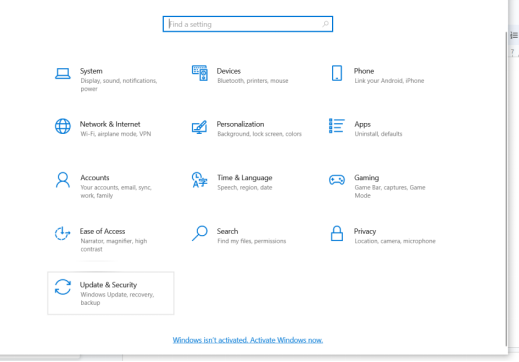
- Firstly, press the Windows + I keys on your device to launch the Settings app.
- Click on “Update & Security“, and then select “Files Backup” from the left pane.
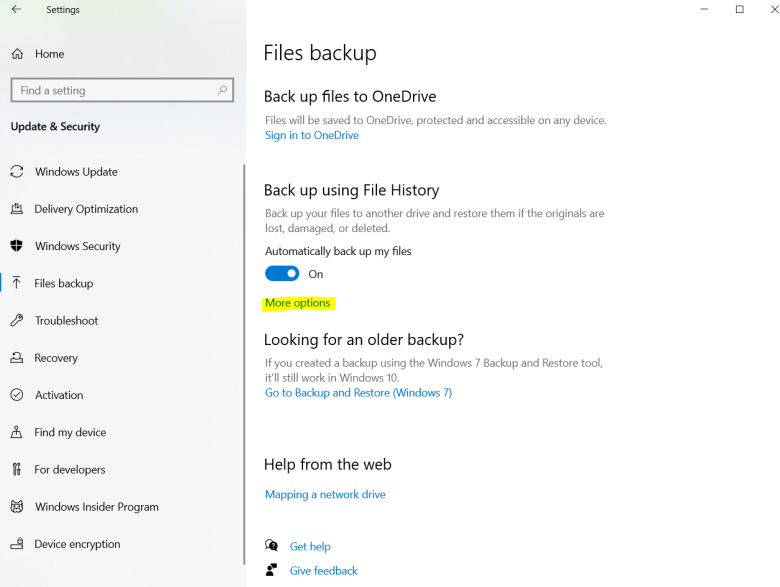
- Now, click on “More options” located under “Back up using File History” and choose the “Restore files from a current backup” option.
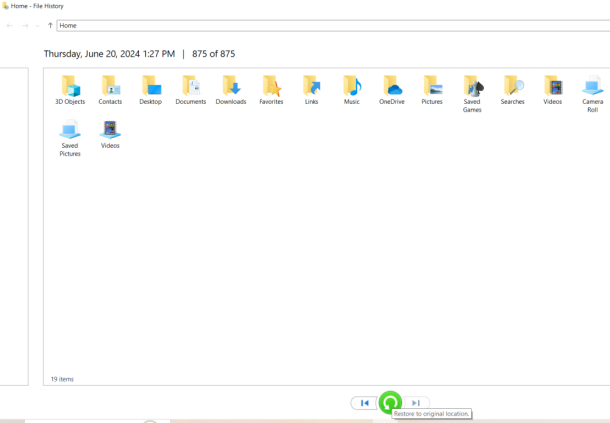
- Go through the backups to find the required version of deleted file(s) and click the green Restore button to save selected files back on your device.
Method 03: Find Lost or Missing Files Using System Restore
Another Windows built-in alternative that you can use to restore lost or missing files on a Windows 11 PC is by rolling back your device to the previous state using the System Restore option. All you have to do is:
- Press the Windows + R keys and type Control Panel, then press the Enter key.
- Select “Recovery” from the options. Then, click “Open System Restore” and go through the on-screen instructions to select a restore point.
- Follow the instructions to restore your system to a previous date when the file was still available.
Method 04: Find Missing Files Using Third-Party Windows Data Recovery Software
Instances may occur when your lost or missing files on Windows 11 PC are not actually missing but deleted from your device. In such cases, you can use Windows data recovery software, such as Stellar Data Recovery Standard, to restore your missing files. His all-in-one data recovery tool supports the recovery of your files deleted for any reason, including accidental deletion, formatting, virus attacks, etc. in a few simple clicks.
The Stellar Data Recovery Standard tool is known for several amazing features, including:
- It offers a deep scan option that thoroughly scans storage devices to recover lost, deleted, or formatted files.
- The software supports the recovery of files of multiple types, including documents, images, videos, etc.
- Compatible with both Windows and Mac devices. 100% safe and secure option for quick file recovery.
- It allows you to preview the recoverable files after completing storage scanning.
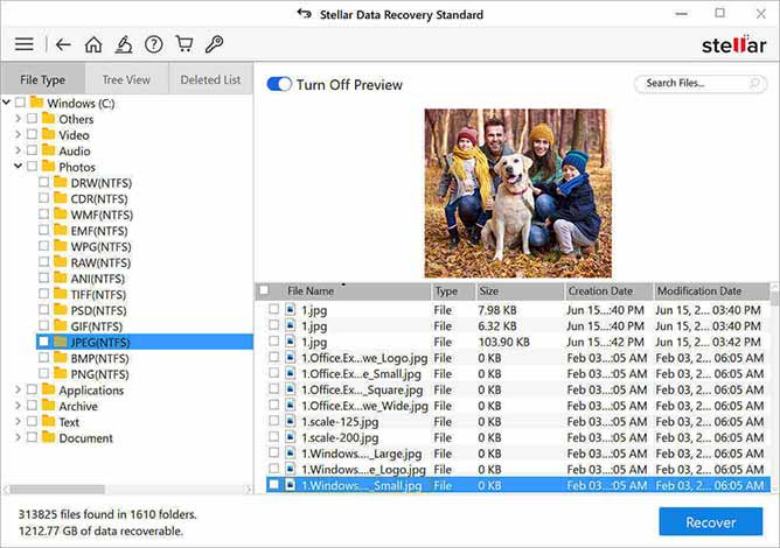
Here’s how to find lost or missing files on Windows 11 using the Stellar Data Recovery Standard tool:
Step 1: Install the Stellar Data Recovery Standard software on your Windows 11 device. Launch the software, and from the homepage, select the type of file you need to restore and click Next.

Step 2: Choose the folder location where your lost or missing files were earlier stored and click Scan.
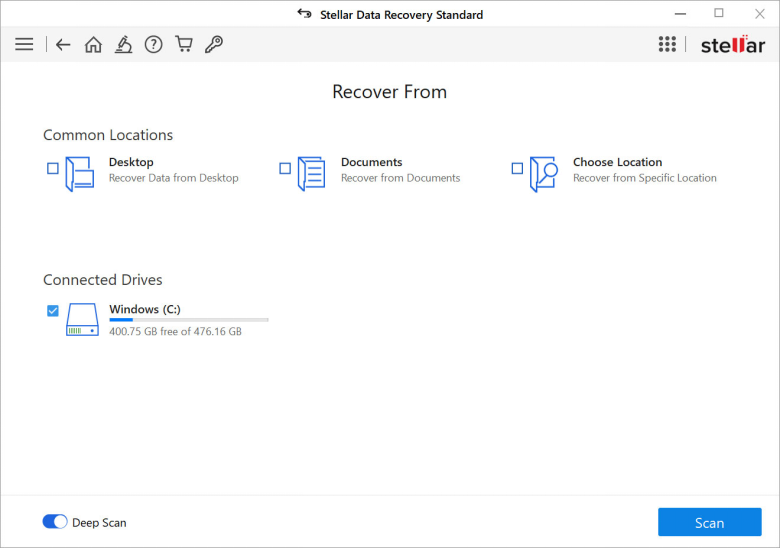
Step 3: After the scanning process is successfully completed, preview the recoverable files and select the missing or lost files that you need to restore. Click the Recover button to save the selected files at the desired location.
Preventive Measures to Avoid Missing Files on Windows 11
To minimize the risk of losing files on Windows 11, you can consider implementing the below-given preventive measures:
- Regular Backups: Use Windows built-in backup tools, cloud storage, or external drives to back up your important files regularly.
- Use Antivirus Software: Protect your computer with reputable antivirus software to prevent malware and virus attacks.
- Safe Removal: Always properly eject the external storage devices from your Windows devices to avoid data corruption.
- Power Protection: Use an uninterruptible power supply (UPS) to protect against power outages and surges.
Wrapping Up
Don’t lose hope when you find any file is lost or missing on your Windows 11 PC. The above-mentioned best ways to find lost or missing files on Windows 11 devices can help you easily recover them from using built-in features like the Recycle Bin and File History to employing third-party Windows data recovery software like Stellar Data Recovery Standard; the aforementioned steps will help you to restore missing files easily. Moreover, you can consider the preventive measures mentioned above to maximize your chances of successfully finding and recovering your lost or missing files on Windows 11.
