


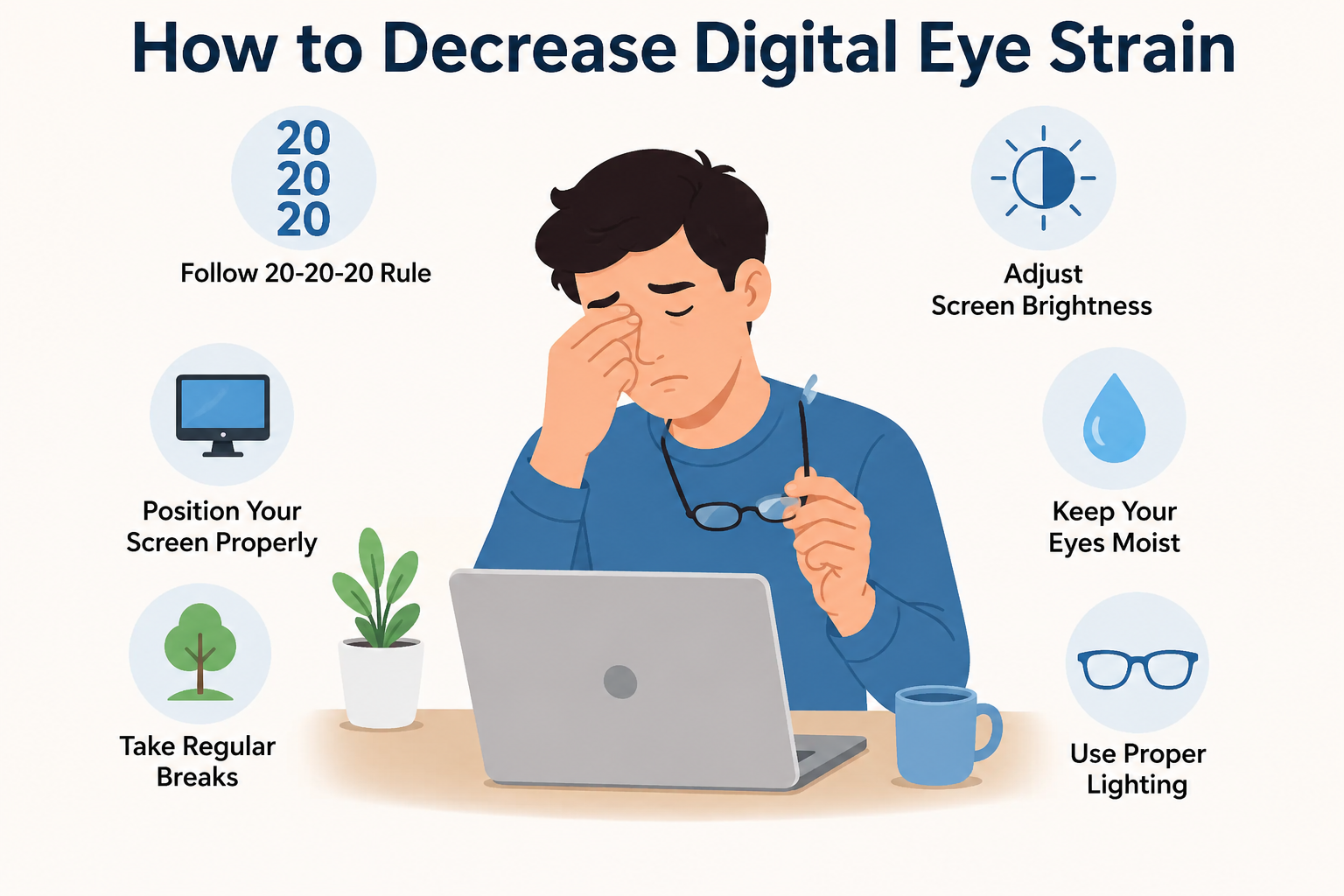
Spending extended hours staring at digital screens—whether for work, gaming, or general daily browsing—has become a routine part of modern life. However, this shift toward constant screen usage brings a significant downside: digital eye strain, also known as Computer Vision Syndrome (CVS).
Digital eye strain causes discomfort, fatigue, dry eyes, blurred vision, and frequent headaches. Fortunately, making focused adjustments to your environment, viewing habits, display settings, and daily routine can dramatically reduce or eliminate these symptoms.
Below is an extensive, actionable guide to protecting your vision and maintaining comfort while working with screens.
What Causes Digital Eye Strain?
Digital eye strain occurs because your visual system works significantly harder when reading pixels on a illuminated glass panel than when reading printed ink on paper.
Key Contributing Factors
- Decreased Blink Rate: The human eye typically blinks roughly 15 to 20 times per minute. When focusing on a screen, that rate drops by up to 50%, leading to rapid moisture evaporation and dry, irritated eyes.
- Glare and Reflections: Bright ambient lights or windows reflecting off glass surfaces force your eyes to struggle to maintain clear focus.
- Improper Distance and Angles: Positioning displays too high, too low, or too close forces neck and eye muscles into unnatural, fatigued positions.
- Blue Light Exposure: High-energy visible (HEV) blue light emitted by screens scatters easily, reducing visual contrast and making your eyes work harder to maintain sharp focus.
- Uncorrected Vision Problems: Minor, uncorrected prescriptions for far-sightedness or astigmatism amplify fatigue when using digital devices.
Proven Strategies to Relieve and Prevent Eye Fatigue
1. Master the 20-20-20 Rule
The continuous contraction of focus muscles (the ciliary muscles) inside the eye causes physical exhaustion. To prevent this muscle spasm and fatigue, implement the standard ergonomic visual rule throughout your day.
- Every 20 minutes: Take a brief break from looking at any illuminated panel.
- Focus 20 feet away: Look at an object at least 20 feet (approx. 6 meters) distance.
- For 20 seconds: Hold your focal point there for at least 20 seconds to allow the ciliary muscles to relax completely.
2. Optimize Display Ergonomics and Distance
How you position your monitor or mobile device directly impacts muscle tension in both your eyes and neck.
       [ Ideal Viewing Distance: 20 to 30 inches (Arm's Length) ]
                                 |
                                 v
   +-----------------------------------------------------------+
   |  Top Edge of Screen (At or slightly below eye level)      |
   |                                                           |
   |                         [ SCREEN ]                        |
   |                                                           |
   |  Center of Screen (10 to 20 degrees below eye line)       |
   +-----------------------------------------------------------+
Placement Guidelines
- Distance: Keep your main desktop monitor about 20 to 30 inches (roughly an arm’s length) away from your eyes.
- Screen Angle: The center of the display should be 10 to 20 degrees below horizontal eye level. Looking slightly downward allows the eyelids to cover more of the ocular surface, reducing moisture loss.
- Document Holders: Place physical papers or notes on a stand right next to the display at equal height and distance to stop repetitive, exhausting head movements.
3. Adjust Ambient Lighting and Reduce Glare
Working in environments where your screen is significantly brighter or darker than surrounding ambient lighting creates intense optical strain.
| Lighting Factor | Recommended Practice | Unfavorable Setup |
| Window Orientation | Position screens perpendicular to windows (side lighting) | Facing or sitting directly in front of a bright window |
| Overhead Lighting | Use lower-intensity bulbs or indirect warm illumination | Bright fluorescent tubes directly above or behind your display |
| Screen Reflections | Use anti-glare screen filters or matte display panels | Unfiltered glossy glass panels under direct light sources |
| Room Contrast | Match screen luminance closely to background ambient room light | Using bright screens in pitch-black or dimly lit rooms |
4. Fine-Tune Screen Display Settings
Modifying built-in display parameters immediately lightens the workload on your visual processing system.
- Match Brightness: Adjust display intensity until it matches the ambient light level of the surrounding workspace. If the screen looks like a light source, it is too bright; if it looks dark or gray, it is too dim.
- Increase Text Size and Contrast: Scale up system font sizes so you can read comfortably without leaning forward or squinting. Black text on a crisp white or neutral background offers optimal legibility.
- Warm Color Temperature: Reduce the display color temperature to limit short-wavelength blue light output. Enable built-in options like “Night Light” (Windows), “Night Shift” (macOS/iOS), or “Eye Comfort Shield” (Android).
5. Practice Conscious Blinking and Hydration
Maintaining the tear film on your cornea is critical for crisp vision and physical comfort.
Conscious Blinking Technique
Periodically perform slow, intentional blinks: close your eyes fully, pause for two seconds, and open them again. This re-establishes a fresh, uniform layer of tear film across the entire surface of the eye.
Lubricating Eye Drops
Over-the-counter preservative-free artificial tears help restore hydration during heavy computing sessions. Avoid anti-redness drops, as they contain vasoconstrictors that can cause rebound redness and worsening dryness over time.
Comparing Solutions for Digital Eye Strain
The following table summarizes common methods for mitigating screen fatigue, outlining their primary benefits and practical applications:
| Solution Type | Primary Benefit | Best Suited For | Key Implementation Tip |
| 20-20-20 Micro-Breaks | Relieves ciliary muscle spasms | All screen users | Set a soft interval timer or install reminder software |
| Preservative-Free Lubricating Drops | Restores surface moisture film | Dry, irritated, or burning eyes | Use 3–4 times daily before eyes become overly dry |
| Computer Vision Glasses | Corrects intermediate focus | Presbyopic or astigmatic users | Request specialized intermediate distance lenses |
| Anti-Glare Matte Covers | Eliminates distracting reflections | Workspaces near open windows | Select an anti-glare film matched to your panel size |
| Warm Color Filtering | Reduces high-energy blue scatter | Evening workers and night shifts | Schedule warm filters to activate automatically at sunset |
Essential Adjustments by Device Category
Different electronic devices introduce distinct visual challenges. Here is how to adapt your setup based on the hardware you use most.
Desktop Monitors & Laptops
- Anti-Reflective Coatings: Ensure your prescription eyewear includes a high-grade anti-reflective (AR) coating to block stray reflections.
- Refresh Rate: If using an external monitor, ensure the refresh rate is set to 60 Hz or higher to eliminate micro-flicker that triggers headaches.
- Clean the Panel: Regularly wipe down dust, smudges, and fingerprints. Streaks scatter incoming light, reducing contrast and forcing extra focus effort.
Smartphones & Tablets
- Maintain Distance: Avoid holding devices close to your face. Keep mobile displays at least 16 to 18 inches away.
- Enable Dark Mode in Low Light: Use dark mode in dim environments to decrease overall light output, but switch back to light mode during bright daytime hours for maximum text clarity.
- Auto-Brightness: Enable ambient light sensor features so the display adjusts automatically as you move between indoor and outdoor settings.
Daily Action Plan to Eliminate Screen Fatigue
Implementing changes gradually makes them easier to turn into long-term habits. Follow this daily checklist to build a comfortable, eye-friendly workflow:
Morning Setup
- Wipe clean all display panels and prescription glasses.
- Position your desk lamp to bounce light off walls rather than directly toward your face or display.
- Verify your monitor is roughly arm’s length away, with its top edge aligned to your direct line of sight.
During Work Hours
- Trigger a 20-second far-focus pause every 20 minutes.
- Apply preservative-free artificial tears if you notice dryness, early irritation, or heaviness.
- Take a complete 5- to 10-minute break away from all devices every hour to stretch your neck, shoulders, and back.
Evening Routine
- Enable warm color filtering on all devices at least two hours before bedtime.
- Dim ambient light levels to prepare your body for rest.
- Power down all interactive panels at least 30 to 60 minutes before sleep to support natural melatonin production.
When to Consult an Eye Care Professional
While environmental and behavioral adjustments resolve the vast majority of digital fatigue issues, persistent symptoms require expert evaluation. Schedule a comprehensive exam with an optometrist or ophthalmologist if you experience:
- Persistent headaches that worsen throughout the workday.
- Double vision or severe blurriness that lingers long after you stop using devices.
- Chronic dry eye symptoms unresponsive to over-the-counter lubricating drops.
- Unexplained neck, shoulder, or upper back pain accompanying display use.
An eye doctor can prescribe specialized computer vision glasses tailored specifically for the exact distance between your face and your workstation. These specialized lenses minimize accommodation stress, correct subtle astigmatisms, and provide immediate relief during long workdays.
By refining your lighting, optimizing screen placement, adjusting display color profiles, and taking regular visual micro-breaks, you can eliminate digital eye strain and maintain clear, comfortable vision throughout your daily routine.
